Show it any task
The process automater
Do it once in your browser, the way you always do. It captures what you did, so it can do it for you from then on. If a person can do it on a website, you can show it.
 PROCESSAUTOMATER
Other assistants start your task from scratch every time.This one learns it once and does it the same way every time. Faster, cheaper, and it doesn't wander.
SHOW IT ONCE. DO IT FOREVER.
It learns a task by watching you do it once. Then it does it for you, as shown, every time.
PRESS TO WATCH IT DRIVE THIS SITE. NOTHING TO INSTALL.
Sign-in isn't reachable from here right now.
Sign in once so your installs are tied to your profile.
Signed in as
Do it once in your browser, the way you always do. It captures what you did, so it can do it for you from then on. If a person can do it on a website, you can show it.
Works in your own browser, where you are already signed in, or in its own browser on our server while you are away. Bigger jobs it puts together from tasks you have shown it, with judgment where needed. You build nothing.
When a task needs a login, you type it on a secure one-time link or in your own browser. It goes straight to your encrypted vault and is never shown in chat. Signing in, posting or paying waits for your yes. How your logins are kept safe
Do the task, or tell your assistant to. Watch its first try and give it the OK.
By command, on a schedule, or on its own. Green only when it checked out.
Short lessons and real examples, from paying one bill to running a whole week on its own. The book Show It Once is the textbook, out now. The School comes with your account.
Give it a name and up to 3 photos, or describe a character. We draw it and bring it to life, and it becomes the face of your assistant. One custom friend is free with your account. Make my friend
ProcessAutomater is three pieces that work together. Install what you need; most people start with the browser extension.
We are in open beta: Windows and Chrome show a one-time warning for new software; the guide below walks you through it. Sign in once so your installs are tied to your profile.
Learns a task you show it once in your browser, then does it again for you. Windows: one installer sets it up in Chrome. Mac: a zip you load into Chrome in four clicks (guide below).
Lets your tasks click and type outside the browser: file pickers, desktop windows, and the trusted input your bank or Google will not accept from a script. Optional. Install it when a task needs it; the extension tells you.
Your assistant with a name, a voice and a phone number. It is the companion to ProcessAutomater: ask it to do a task and it performs it, and it can learn a task you show it, so the steps are saved to your profile and run again later. Works with the extension and the desktop app; it is not a replacement for them.
ProcessAutomater is a new product from a small company, and you are one of its first users. Before asking the stores to list us, we audited our extension and apps for security. We are preparing ProcessAutomater for the Chrome Web Store. Until it is listed, install it with the download on this page. We are also completing Microsoft's and Apple's signing and listing steps for the Windows installer and the phone app. Until those finish, Windows and Chrome show a one-time warning for software they have not seen before. That warning is about how new we are, not about what the software does. The guides below show each screen and the exact button to click; you do it once, and the apps update themselves after that.
When those finish, these extra steps go away on their own. Once our Windows installer is signed, every install also helps Microsoft's SmartScreen learn it, so the warning fades for everyone who comes after you. Thank you for being an early user and part of getting a startup into the mainstream stores.
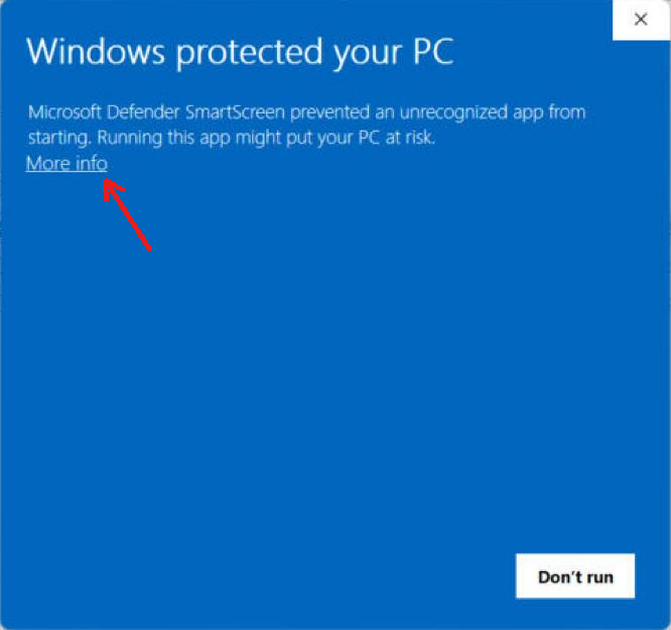
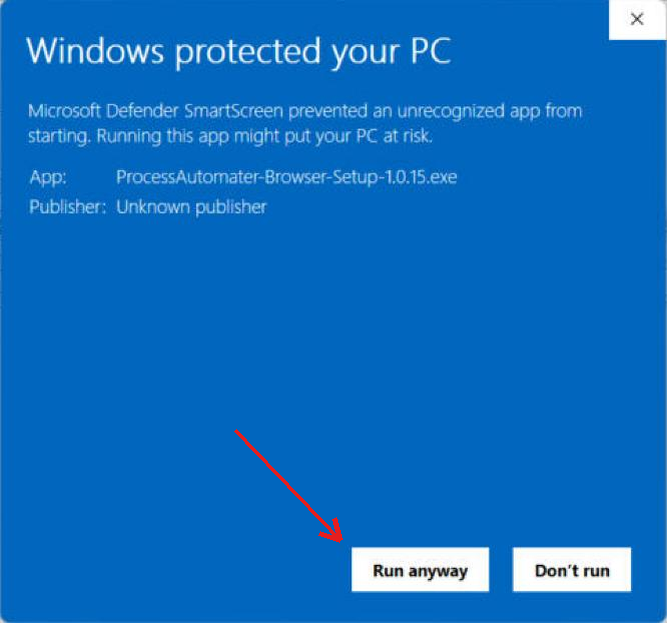
Why: Windows shows this screen for programs it has not seen before. We are completing Microsoft's signing for our installer; once it is signed, Windows learns it from installs like yours and this screen goes away.
Why: Chrome shows this for every extension that is not yet listed in the Web Store. We are preparing our Web Store listing; once we are listed, Chrome installs it like any other extension and this step disappears.
Why: Mac Chrome will install from the Web Store once we are listed there. Until then this is the standard way to load an extension, the same one developers use every day.
Why: macOS shows this for apps Apple has not notarized yet. Our Apple developer enrollment is in progress; once Apple signs and notarizes the Mac app, this step goes away. Same app, same code; the check is about the signature, not the contents.
Questions during install? Message us from the page chat and a person answers. Thank you for being part of the early release.